Here is some useful one-liners using dsquery to enumerate all the members of an AD security group and retrieve their e-mail addresses or retrieve an e-mail address from AD via a single user account. These come in handy when you need to create distribution lists for notifications or announcements. You can wrap these queries in batch scripts and pipe out to a file and import in to excel to cleanup.
dsquery
group -Name <AD Group Name> | dsget group -members | dsget user -email | findstr ".com" > output.txt
Also to retrieve e-mail addresses from single users use the following:
dsquery user -samid <username> | dsget user -email | findstr ".com" > output-user.txt
Monday, June 25, 2012

Wednesday, June 13, 2012
VBScript to Enumerate Installed Applications and Versions
Here is a script I wrote to discover the installed application versions across a list of servers. I have it formatted so it will export a csv file with the information. Note: I also wrote some conditional statements to exclude some Windows update patches/hotfixes/security updates, etc.
To use: "cscript script.vbs" and will generate a results.csv file, also provide a ServerList.txt filled with the list of servers (by line) which you wish to scan the applications and their version numbers.
Here it is:
Dim args,computername, count
count = 0
Set objFSO = CreateObject("Scripting.FileSystemObject")
Set objFile1 = objFSO.OpenTextFile("ServerList.txt", ForReading)
Const ForReading = 1
'Read Compare To List
Dim ListToProcess()
i = 0
Do Until objFile1.AtEndOfStream
Redim Preserve ListToProcess(i)
ListToProcess(i) = objFile1.ReadLine
i = i + 1
Loop
objFile1.Close
For Each strLine in ListToProcess
if strLine <> "" then
computername = strLine
Call enumApps(strLine,1)
End if
Next
Function enumApps(computername,flag)
On Error Resume Next
Dim strComputer, strLine
strComputer = computername
Const HKLM = &H80000002
Const strKeyPath = "SOFTWARE\Microsoft\Windows\CurrentVersion\Uninstall"
Wscript.echo "===============" & "Parsing " & computername & "==============="
Dim oReg, arrSubKeys, strProduct, strDisplayName, strVersion
Set oReg = GetObject("winmgmts:{impersonationLevel=impersonate}!\\" & strComputer & "\root\default:StdRegProv")
oReg.EnumKey HKLM, strKeyPath, arrSubKeys
For Each strProduct In arrSubKeys
oReg.GetStringValue HKLM, strKeyPath & "\" & strProduct, "DisplayName", strDisplayName
oReg.GetStringValue HKLM, strKeyPath & "\" & strProduct, "DisplayVersion", strVersion
Dim Filter
If InStr(1, strDisplayName, "", vbTextCompare) > 0 Then
If InStr(1, strDisplayName, "Security", vbTextCompare) = 0 Then
If InStr(1, strDisplayName, "Update", vbTextCompare) = 0 Then
If InStr(1, strDisplayName, "Hotfix", vbTextCompare) = 0 Then
strVersion = Replace(strVersion, ",", "")
strLine = strLine & strDisplayName & "," & strVersion & "," & strComputer & vbCrLf
'Wscript.echo strLine
End If
End If
End If
End If
Next
Dim ObjFso
Dim StrFileName
Dim ObjFile
StrFileName = "results.csv"
Set ObjFso = CreateObject("Scripting.FileSystemObject")
'Opening the file
Set ObjFile = ObjFso.OpenTextFile (StrFileName, 8, True)
If count = 0 then
objFile.WriteLine "Application Name, Version,Server"
count = 1
end if
objFile.WriteLine strLine
objFile.Close
End Function
To use: "cscript script.vbs" and will generate a results.csv file, also provide a ServerList.txt filled with the list of servers (by line) which you wish to scan the applications and their version numbers.
Here it is:
Dim args,computername, count
count = 0
Set objFSO = CreateObject("Scripting.FileSystemObject")
Set objFile1 = objFSO.OpenTextFile("ServerList.txt", ForReading)
Const ForReading = 1
'Read Compare To List
Dim ListToProcess()
i = 0
Do Until objFile1.AtEndOfStream
Redim Preserve ListToProcess(i)
ListToProcess(i) = objFile1.ReadLine
i = i + 1
Loop
objFile1.Close
For Each strLine in ListToProcess
if strLine <> "" then
computername = strLine
Call enumApps(strLine,1)
End if
Next
Function enumApps(computername,flag)
On Error Resume Next
Dim strComputer, strLine
strComputer = computername
Const HKLM = &H80000002
Const strKeyPath = "SOFTWARE\Microsoft\Windows\CurrentVersion\Uninstall"
Wscript.echo "===============" & "Parsing " & computername & "==============="
Dim oReg, arrSubKeys, strProduct, strDisplayName, strVersion
Set oReg = GetObject("winmgmts:{impersonationLevel=impersonate}!\\" & strComputer & "\root\default:StdRegProv")
oReg.EnumKey HKLM, strKeyPath, arrSubKeys
For Each strProduct In arrSubKeys
oReg.GetStringValue HKLM, strKeyPath & "\" & strProduct, "DisplayName", strDisplayName
oReg.GetStringValue HKLM, strKeyPath & "\" & strProduct, "DisplayVersion", strVersion
Dim Filter
If InStr(1, strDisplayName, "", vbTextCompare) > 0 Then
If InStr(1, strDisplayName, "Security", vbTextCompare) = 0 Then
If InStr(1, strDisplayName, "Update", vbTextCompare) = 0 Then
If InStr(1, strDisplayName, "Hotfix", vbTextCompare) = 0 Then
strVersion = Replace(strVersion, ",", "")
strLine = strLine & strDisplayName & "," & strVersion & "," & strComputer & vbCrLf
'Wscript.echo strLine
End If
End If
End If
End If
Next
Dim ObjFso
Dim StrFileName
Dim ObjFile
StrFileName = "results.csv"
Set ObjFso = CreateObject("Scripting.FileSystemObject")
'Opening the file
Set ObjFile = ObjFso.OpenTextFile (StrFileName, 8, True)
If count = 0 then
objFile.WriteLine "Application Name, Version,Server"
count = 1
end if
objFile.WriteLine strLine
objFile.Close
End Function
Citrix Script to Enumerate Program Neighborhood Folders
Here's a MFCOM script I wrote up really quick that will output all the applications in a farm including their name, citrix management console path, and program neighborhood path. I wrote this because I was working on a customer site where the path between the PN and Citrix console differed causing big support headaches when users called in about apps not working and having trouble identifying which app they were talking about. We used this to discover what everything looked like and to design a new structure. This worked against a Citrix Presentation Server 4.5 Farm. Thanks to http://community.citrix.com/display/xa/Code+Share for providing me the base code to get this working.
Here it is, you can use it by doing cscript script.wsf > output.csv
<package>
<job id=" ListPNFolderPath">
<comment>
By Matt Shorrosh
</comment>
<runtime>
<description>
Enumerates the Application Name, CMC Path, PN Folder Path
</description>
</runtime>
<reference object="MetaFrameCOM.MetaFrameFarm"/>
<script language="VBScript">
Dim theFarm, aServer
'
' Create MetaFrameFarm object
'
Set theFarm = CreateObject("MetaFrameCOM.MetaFrameFarm")
if Err.Number <> 0 Then
WScript.Echo "Can't create MetaFrameFarm object"
WScript.Echo "(" & Err.Number & ") " & Err.Description
WScript.Echo ""
WScript.Quit Err.Number
End if
'
' Initialize the farm object.
'
theFarm.Initialize(MetaFrameWinFarmObject)
if Err.Number <> 0 Then
'WScript.Echo "Can't Initialize MetaFrameFarm object"
'WScript.Echo "(" & Err.Number & ") " & Err.Description
'WScript.Echo ""
'WScript.Quit Err.Number
End if
'
' Are you Citrix Administrator?
'
if theFarm.WinFarmObject.IsCitrixAdministrator = 0 then
'WScript.Echo "You must be a Citrix admin to run this script"
'WScript.Echo ""
'WScript.Quit 0
End If
'
For Each anApp In theFarm.Applications
anApp.loaddata(true)
if Err.Number <> 0 Then
WScript.Echo "Can't enumerate applications"
WScript.Echo "(" & Err.Number & ") " & Err.Description
WScript.Echo ""
WScript.Quit Err.Number
End if
Wscript.echo anApp.AppName & "," & anApp.DistinguishedName & "," & anApp.PNFolder
Next
</script>
</job>
</package>
Here it is, you can use it by doing cscript script.wsf > output.csv
<package>
<job id=" ListPNFolderPath">
<comment>
By Matt Shorrosh
</comment>
<runtime>
<description>
Enumerates the Application Name, CMC Path, PN Folder Path
</description>
</runtime>
<reference object="MetaFrameCOM.MetaFrameFarm"/>
<script language="VBScript">
Dim theFarm, aServer
'
' Create MetaFrameFarm object
'
Set theFarm = CreateObject("MetaFrameCOM.MetaFrameFarm")
if Err.Number <> 0 Then
WScript.Echo "Can't create MetaFrameFarm object"
WScript.Echo "(" & Err.Number & ") " & Err.Description
WScript.Echo ""
WScript.Quit Err.Number
End if
'
' Initialize the farm object.
'
theFarm.Initialize(MetaFrameWinFarmObject)
if Err.Number <> 0 Then
'WScript.Echo "Can't Initialize MetaFrameFarm object"
'WScript.Echo "(" & Err.Number & ") " & Err.Description
'WScript.Echo ""
'WScript.Quit Err.Number
End if
'
' Are you Citrix Administrator?
'
if theFarm.WinFarmObject.IsCitrixAdministrator = 0 then
'WScript.Echo "You must be a Citrix admin to run this script"
'WScript.Echo ""
'WScript.Quit 0
End If
'
For Each anApp In theFarm.Applications
anApp.loaddata(true)
if Err.Number <> 0 Then
WScript.Echo "Can't enumerate applications"
WScript.Echo "(" & Err.Number & ") " & Err.Description
WScript.Echo ""
WScript.Quit Err.Number
End if
Wscript.echo anApp.AppName & "," & anApp.DistinguishedName & "," & anApp.PNFolder
Next
</script>
</job>
</package>
Thursday, April 19, 2012
Free Microsoft Infrastructure Technologies Virtual Labs
Just wanted to share this with everyone, free access to virtual labs to learn new MS Technologies.
http://technet.microsoft.com/en-us/virtuallabs/default.aspx
http://technet.microsoft.com/en-us/virtuallabs/default.aspx
Monday, April 2, 2012
Publishing Sharepoint 2007 w/ Infopath Forms via UAG 2010
Problem:
Accessing all the Sharepoint content through UAG seemed fine with just AAM setup on the Sharepoint side except when we attempted to open up Infopath forms. We had issues with the GetUserProfile() service not working and/or other Web services connections for populating the other drop downs in the Infopath forms failing. We were greeted with an error that said "Some rules were not applied" and "An error occured accessing a data source" or event id 5566.

Environment:
This setup included 2 load balanced UAG 2010 SP1 Update 1 boxes with a Cisco ACE NLB, 4 Sharepoint 2007 FE Farm servers, and 2 backend Web Services IIS boxes.
Solution:
**Notes about InfoPath: In order for InfoPath Forms to work via UAG, all data connections must be .udcx files placed in a Trusted Data Connection Library and Forms must be "Fully Trusted" and Administrator Approved.
Accessing all the Sharepoint content through UAG seemed fine with just AAM setup on the Sharepoint side except when we attempted to open up Infopath forms. We had issues with the GetUserProfile() service not working and/or other Web services connections for populating the other drop downs in the Infopath forms failing. We were greeted with an error that said "Some rules were not applied" and "An error occured accessing a data source" or event id 5566.

Environment:
This setup included 2 load balanced UAG 2010 SP1 Update 1 boxes with a Cisco ACE NLB, 4 Sharepoint 2007 FE Farm servers, and 2 backend Web Services IIS boxes.
Solution:
The solution ended up requiring us to implement Kerberos authentication because we were faced with the "double hop" issue (See http://blogs.technet.com/b/askds/archive/2008/06/13/understanding-kerberos-double-hop.aspx ). To successfully implement Kerberos required a lot of changes to our environment. I'll describe below in more detail what was done.
- Create Sharepoint Alternate Access Mappings
Navigate to Sharepoint Central Administration->Operations->Alternate Access Mappings. Create AAMs that map a new dummy url to the public facing URL that is set for Sharepoint 2007 in UAG. Place the AAM in the internet zone and make sure that the Public URL for the zone is set to HTTPS.
- Extend Web Application
Next, extend the web application (Application Management > Create or Extend Web Application > Extend Web Application to Another IIS Web Site ). Make sure that Negotiate (Kerberos) is configured as the authentication provider and allow anonymous is set to No. Map the Zone to Internet.
- Add Host Entries on Sharepoint Front End hosts
Next add an entry to the hosts file that points the dummy URL to loopback IP address (127.0.0.1). Apply this to every Sharepoint Front end server.
- Add IIS Host Header Binding
In IIS add a host header binding for the dummy URL, to the original web application (the one on port 80). For example if your real site name is partners.company.com and your dummy url is partnersuag.company.com, make sure to add the host header binding to the partners.company.com site in IIS.
- Install SSL Cert on IIS SSL Binding
Install an SSL certificate on the newly created SSL web application in IIS. Validate that the certificate is correctly installed and not showing any errors from the Certificates MMC or via IIS view certificate dialog screen.Validate the root cert is in the Trusted Root Authorities certificate store. We ran in to an issue where even though the certificate showed no errors, we received errors in Sharepoint about trouble making an SSL connection and this was because the certificates whole chain was in the Personal store instead of placing the root certs in the Trusted Root Auth store.
- UAG Web Servers Config
Make sure to check the replace host header in the Web Servers tab for the application and apply the “bogus” url in the text box. We matched the internal URL and the public URL in our configuration.
- UAG Authentication Configuration
Check use Kerberos Constrained Delegation for single sign on and type in http/*
- Validate SPNs in environment
· Validate SPNs for Sharepoint Service Account for IIS Front End Application Pool
o Make sure every SP FE server has a corresponding HTTP/<FQDN> and HTTP/<Netbios name> via Setspn -L sharepointsvcaccount
o If missing an SPN add via setspn –A HTTP/<FQDN> sharepointsvcaccount
o Also add setspn –A HTTP/<netbios name> sharepointsvcaccount
· Validate SPNS for Service Account for Web services IIS Application Pool
o Make sure every IIS box in the pool has a corresponding HTTP/<FQDN> and HTTP/<Netbios name> via Setspn -L svc-account
o If missing an SPN add via setspn –A HTTP/<FQDN> svc-account
o Also add setspn –A HTTP/<netbios name> svc-account
- Set Delegation for UAG computer account(s)
Add the delegation in AD Users and Computers to the UAG computer accounts, go to the Delegation tab and click add and type in Sharepoint svc account and IIS Web Farm service account and make sure to add all related SPNs that show up to the delegation. Reboot UAG servers.
- Set Delegation to Sharepoint Farm Service Account
Delegation should be set by adding the next service hop in the path for authentication, in this case add the Web Service IIS Farm svc account so that Sharepoint can impersonate users coming from UAG to the web services. Allow time for replication.
- Set Delegation to IIS Web Services Farm Service Account
Set the Delegation to Trust this computer for delegation to any service ( Kerberos only ). Allow time for replication.
- Set Delegation for Sharepoint/Web Service Front End IIS Computers
Validate that all corresponding Sharepoint Front End boxes and Web Services Farm IIS boxes have the following delegation set: "Trust this computer for delegation to any service ( Kerberos only )"
- Set Component Services to Delegate on all Sharepoint Front End
Go to Start -> Administrative Tools -> Component Services,Open the Computers node and right click on My Computer and select Properties. Set the Default Impersonation Level to Delegate.
- Add Registry Key to support Kerberos in Server 2003
Add a DWORD 32bit to HKLM\System\CurrentControlSet\Control\Lsa\Kerberos\Parameters\MaxPacketSize and set the value to 1
Wednesday, September 28, 2011
dcpromo fails with error 1326: unknown user name or password
Problem:
Recieved an error 1325 (Logon failure: unknown user name or bad password) while attempting a dcpromo.
Here's a screenshot of the error:

The Solution:
I ended up just setting the local administrator password to match my domain administrator password and magically it worked! It made no sense to me! Anyone know why?
Thanks to http://tsoorad.blogspot.com/2010/01/oh-my-aching-brain-cell-or-dcpromo-u.html for the fix!
Recieved an error 1325 (Logon failure: unknown user name or bad password) while attempting a dcpromo.
Here's a screenshot of the error:

The Solution:
I ended up just setting the local administrator password to match my domain administrator password and magically it worked! It made no sense to me! Anyone know why?
Thanks to http://tsoorad.blogspot.com/2010/01/oh-my-aching-brain-cell-or-dcpromo-u.html for the fix!
Wednesday, September 21, 2011
Event Id 34 and 50 Time-Service errors fixed on Virtual DC
Recently I deployed a 2008 R2 Domain Controller running off VMware vSphere with VMware tools installed. I had found out that the VMware tools had Time synchronization with ESX host enabled (which the ESX hosts did not have ntp configured properly) and thus threw the DC's time sync way off. As a note it is best practice to either use only one of the time synchronization methods with DC's..... either all use Sync with ESX host or all use w32time...from my experience w32time seems to work better.

After discovering the time sync with esx host was checked I ended up getting lots of event errors 34 and 50 in the event logs. The fix was to uncheck the Sync with ESX host and edit the following Registry keys to allow me to sync the time back beyond the allowed sync change thresholds:
[HKEY_LOCAL_MACHINE\SYSTEM\CurrentControlSet\Services\W32Time\Config]
MaxAllowedPhaseOffset 0xffffffff
MaxPosPhaseCorrection 0xffffffff
MaxNegPhaseCorrection 0xffffffff
 After changing those keys I ran the following script and everything was fixed. :)
NET TIME /DOMAIN:<your domain> /SET
w32tm /config /update
w32tm /config /manualpeerlist:<your PDCe DC>
w32tm /config /syncfromflags:domhier /update
net stop w32time && net start w32time
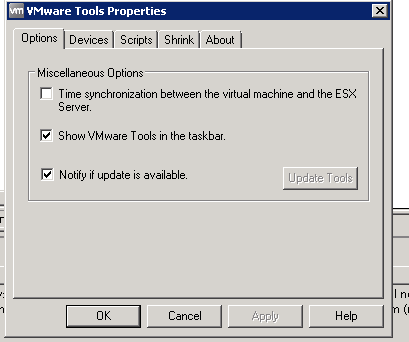
After discovering the time sync with esx host was checked I ended up getting lots of event errors 34 and 50 in the event logs. The fix was to uncheck the Sync with ESX host and edit the following Registry keys to allow me to sync the time back beyond the allowed sync change thresholds:
[HKEY_LOCAL_MACHINE\SYSTEM\CurrentControlSet\Services\W32Time\Config]
MaxAllowedPhaseOffset 0xffffffff
MaxPosPhaseCorrection 0xffffffff
MaxNegPhaseCorrection 0xffffffff

NET TIME /DOMAIN:<your domain> /SET
w32tm /config /update
w32tm /config /manualpeerlist:<your PDCe DC>
w32tm /config /syncfromflags:domhier /update
net stop w32time && net start w32time
Subscribe to:
Posts (Atom)